
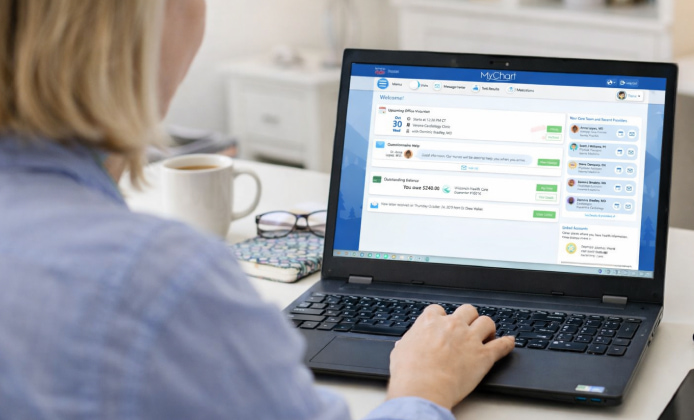
Using MyChart on a laptop can be a big upgrade if you like a larger screen for reading lab results, checking visit summaries, or sending detailed messages to your care team. While phones are convenient, a laptop is often better for downloading documents, comparing dates, and managing family accounts in one place. Below you’ll find clear ways to use MyChart on a laptop, what to do if you can’t sign in, and how to protect your health information on shared or public devices.
Download MyChart for Laptop
In most cases, you’ll access MyChart through your healthcare organization’s MyChart website in a browser (Chrome, Edge, Firefox, or Safari). Some organizations also support a browser-based experience that feels app-like, and a few offer additional options depending on your device and region.
Tip: If you have more than one healthcare organization, each may have its own MyChart login link, even though the interface looks similar.
Fast Setup Checklist
- Use a modern browser and keep it updated.
- Have your activation code (if your organization requires one) or your verified email/phone ready.
- Turn on a screen lock and use a strong password on your laptop.
- Avoid saving passwords on shared computers.
Access Options Compared
Choose the approach that fits how you work quick check-ins, frequent messaging, or document-heavy tasks like printing and uploading forms.
| Option | Best For | What You Need | Things to Watch |
|---|---|---|---|
| Web browser portal | Most users, all core features | A laptop browser + your org’s login link | Don’t use private data on public Wi-Fi without caution |
| “Installable” web shortcut (PWA) | Quick launches, clean window | Chrome/Edge + supported portal | Not every organization supports it |
| Android app via emulator | People who prefer the mobile layout | A reputable emulator + app store access | More setup steps and added security considerations |
| Phone + laptop combo | Two-factor codes, quick scans | Phone for codes, laptop for documents | Keep both devices protected |
Step-by-Step: Using the Browser Portal
- Go to your hospital/clinic website and find the MyChart sign-in button.
- Sign in with your existing credentials or follow the “Sign Up” flow if you’re new.
- Confirm you can open key areas: Messages, Test Results, Visits, Medications, and Billing.
- Set communication preferences so you don’t miss important updates.
If you ever see the phrase MyChart app download for free for laptop in search results, treat it as a reminder to use official sources and your provider’s portal for safe access.
“App” Experience on a Laptop: What’s Realistic
Many people want a dedicated desktop-style experience, and some portals allow an installable shortcut that opens in its own window. In Chrome or Edge, look for an install icon in the address bar or check the browser menu for an install option. When you try to download MyChart app for laptop, it’s usually better to start from your provider’s official MyChart page so you land on the correct sign-in for your organization.
In some cases, users search for MyChart app download for laptop because they want a familiar mobile interface on Windows or macOS, and that typically involves an Android environment rather than a traditional desktop installer. For a smoother workflow, MyChart download for laptop searches often lead people to the browser portal, which is typically the most direct and supported way to view your records.
Everyday Tasks That Work Better on a Laptop
- Downloading and organizing documents: Save after-visit summaries, vaccine records, and referral letters into clearly named folders.
- Printing: Print lab results or medication lists for travel, insurance paperwork, or specialist visits.
- Uploading files: Attach PDFs or images to messages when your clinic enables document upload.
- Managing family access: Switch between proxy accounts with fewer taps than on a phone.
For reading long visit notes, MyChart app on laptop usage tends to feel calmer because you can scroll, search within pages, and compare dates side by side.
Security Basics You Shouldn’t Skip
- Use a password manager and enable multi-factor authentication if offered by your organization.
- Log out after each session on shared devices.
- Don’t store downloads in a public folder if other people use the same computer profile.
- Be careful with screenshots, since they can end up in cloud backups automatically.
Privacy note: If you’re using a work laptop, remember that some device policies can monitor installed software or network activity.
If you’re tempted to download MyChart for laptop from an unfamiliar website, skip it and rely on the official app stores or your provider’s web portal to reduce security risks.
Troubleshooting Sign-In Issues
- Wrong organization: If your credentials don’t work, you may be on the wrong MyChart sign-in page.
- Password loops: Clear cookies for the site or try a private/incognito window.
- Two-factor trouble: Confirm your phone number/email is current in account settings.
- Blank pages: Disable aggressive ad/script blockers for the portal and reload.
If you ever install a shortcut and it behaves oddly, removing and re-adding the MyChart on laptop app style shortcut can fix caching issues without changing your account.
HP Laptop Notes: Performance and Display Comfort
On modern hardware, performance is usually fine, but display settings can affect readability. Increase browser zoom, enable high-contrast mode if needed, and consider a larger cursor for easier navigation.
For users setting up MyChart app on HP laptop devices, keeping graphics drivers and the browser updated can help prevent rendering glitches in charts and test-result timelines.
Best Practices for a Clean Workflow
- Create a dedicated folder for health downloads and name files by date and topic.
- Use calendar reminders for follow-ups, but avoid putting sensitive details in event titles.
- Before a visit, open your medication list and allergies, then update anything that changed.
- After a visit, review the plan and save key instructions as a PDF for offline access.
With the right setup, a laptop becomes a reliable hub for managing appointments, results, and communication especially when you’re juggling multiple providers or supporting family members.
 MyChart on PC: A Practical Guide for Bigger Screens and Easier Access
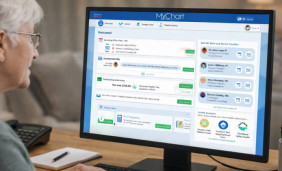 Install MyChart Guide: Secure Lab Results and Video Visits in One App
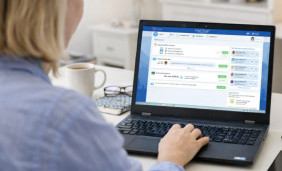 MyChart for Laptop: Secure Messaging and Health Record Access
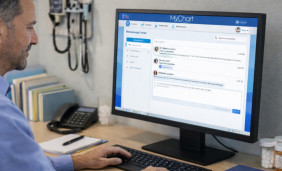 New MyChart App: How to Enable Alerts and Secure Your Account
 Get the Best MyChart App Experience With Our Tips
 Top 5 Best Apps Similar to MyChart for Seamless Healthcare Management